
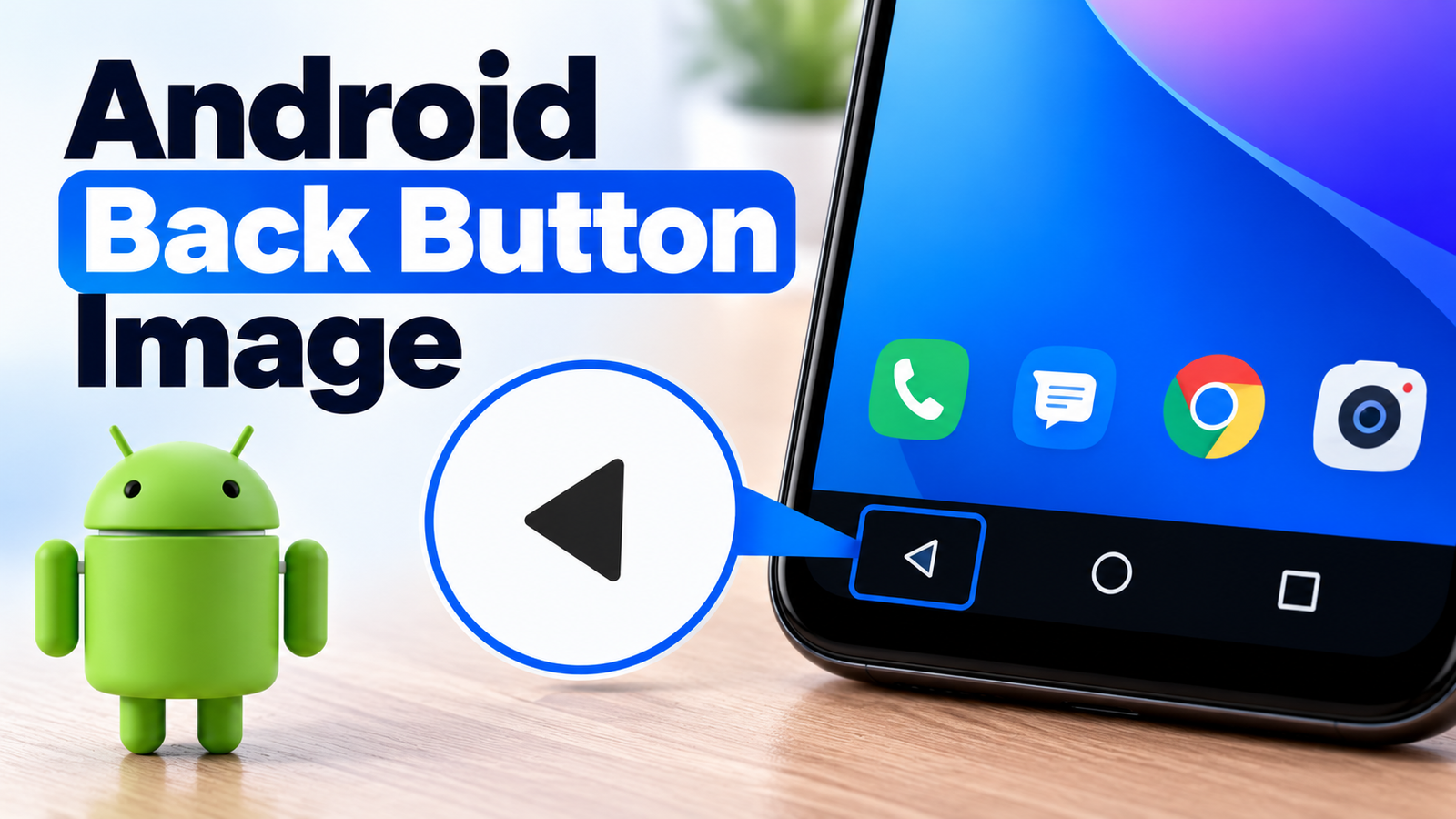
The Android Back button helps users return to a previous screen without losing track of what they are doing. Many people search for an android back button image when they need to identify the navigation icon, explain phone settings, or create a mobile tutorial. The symbol often looks like a left-pointing arrow or triangle, but its appearance can change depending on the phone brand and navigation mode.
Knowing which icon to look for makes phone use easier. It is also helpful for people who create technical guides, prepare support documents, or design mobile apps. This article explains the common Back button styles, how to display navigation buttons, what to do when the button disappears, and how to use screenshots in helpful guides.
What Does the Android Back Button Look Like?
An android back button image usually shows a left-facing arrow, chevron, or triangle in the navigation area near the bottom of the screen. On some older phones, the icon appears as a filled triangle. Other devices use a simple outline or a curved arrow. The exact design depends on the manufacturer and software version.
In classic three-button navigation, the Back button appears alongside the Home and Recent Apps buttons. Home returns to the main home screen, while Recent Apps displays apps that are open or were used recently. Back takes the user to the previous screen or closes a temporary menu or dialog when the app supports that action.
The system Back button is different from an arrow inside an app’s top bar. Android apps may use an Up arrow near the app title to move to a higher level within that app. The system Back action follows the user’s navigation history. Android Developers explains this difference in its android back button image.
An android back button image can be useful in a phone manual, troubleshooting article, classroom handout, or customer support guide. Choose a clear image that matches the type of phone you are explaining. Do not assume every Android device uses the same symbol or places it in the same position.
For beginners, a labelled image can make the difference between recognising the correct control and tapping the wrong one. Keep the Back icon separate from the Home and Recent Apps symbols so readers can identify each function without confusion.
How to Show the Back Button on an Android Phone
Some Android phones use gesture navigation. With this option, users swipe inward from the left or right edge of the screen to go back, so a separate Back icon may not appear at the bottom. Android also supports three-button navigation on many devices. The setting name and location can vary by manufacturer.
To find the setting, open your phone’s Settings app and search for Navigation or Navigation mode. On many Google Pixel devices, the option is under Settings, System, and Navigation mode. On some other phones, it may appear under System, Gestures, Display, or Navigation bar.
Select 3-button navigation if you want the Back, Home, and Recent Apps buttons to appear. Some phones also let you change the order of these controls. If you prefer swiping, select Gesture navigation instead.
When searching for an android back button image, first decide whether you need an example of classic navigation buttons or a gesture-based setup. A screenshot from a three-button phone may not explain a gesture-only interface correctly. Match the image to the instructions in your article.
The exact steps can differ across brands and android back button image. If the setting is difficult to find, use the search feature inside Settings or consult the official support page for your phone model rather than following instructions for a different device.
Why the Back Button May Be Missing or Not Working
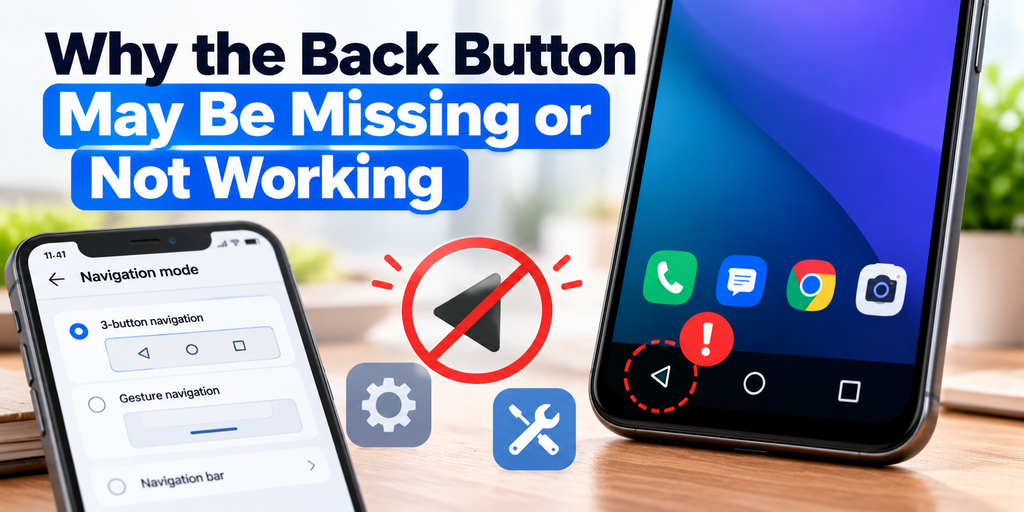
If the Back button is missing, your phone may be using gesture navigation instead of button navigation. Open Settings and check the navigation mode before assuming the device has a fault. On some phones, full-screen games and videos can also hide the navigation bar until you swipe from the edge or bottom of the screen.
If the button appears but does not respond, try these basic checks:
- Close and reopen the app to see whether the issue affects only one application.
- Restart the phone if navigation stops responding across several apps.
- Install available system and app updates.
- Check whether a case, screen protector, or touch problem affects the screen.
- Consult the manufacturer’s official support instructions if the issue continues.
An android back button image in a troubleshooting guide should show the relevant control clearly. If you create your own diagram, make it clear that the graphic is an illustration rather than a screenshot that represents every Android model.
Why Are YouTube Ads So Long? What Really Determines Ad Length
Remember that pressing Back does not always close an app. It usually returns to the previous screen, dismisses a dialog, or exits a nested view. What happens next depends on the app and the screen currently open.
If you use an android back button image to explain a fix, include the phone’s navigation mode in your instructions. This helps readers understand why their screen may look different from the example.
How to Use an Android Back Button Image in Guides and App Design
A clear android back button image can make a tutorial easier to follow, especially for beginners who may not know the names of navigation controls. Place it near the step where the reader needs to tap Back. Keep the icon large enough to see on a mobile screen, and add a short explanation if its purpose is not obvious.
For screenshots, capture the actual phone interface when possible. This helps readers recognise the correct icon and understand where it appears. Crop out unrelated notifications or private information before publishing. android back button image, make sure its shape and placement match the device or navigation mode covered in the guide.
For app designers, consistency matters. A Back control should be easy to recognise and should behave as users expect. Keep enough space around interactive elements, use clear contrast against the background, and test the layout on different screen sizes. Do not use a decorative arrow that looks like a Back button if it performs another action.
When preparing an android back button image for a website, choose a descriptive file name, such as android-back-button-navigation.webp. Write useful alt text that explains what the image shows, for example, “Android three-button navigation bar with Back, Home, and Recent Apps icons.” Compress the image to help reduce page load time, while keeping the icon sharp and readable.
Avoid copying images from random websites without checking their usage rights. Use your own screenshot, a graphic you created, or an image you have permission to publish. If you show a particular phone brand, check that the screenshot and instructions match that model.
A well-prepared android back button image should support the text rather than replace important instructions. Explain what the reader should tap, what should happen next, and what to try if the control is not visible. This makes the guide more useful for readers with different levels of technical experience.
Conclusion
The Android Back button is a simple but important navigation control. It helps people return to a previous screen, dismiss menus, and move through apps. Its appearance can change across devices, and some phones use edge-swipe gestures instead of showing a dedicated button at the bottom.
Irish Business Systems: Modern Solutions for Smarter Business Operations
If you need an android back button image, choose one that matches the navigation style you are explaining. Check the phone’s settings to switch between gesture and three-button navigation, and use official manufacturer instructions when steps differ. If the control is missing or unresponsive, check the navigation mode, restart the phone, and update the software before trying more advanced fixes.
For articles, tutorials, and app interfaces, clear images and accurate instructions help users understand what to do. A well-labelled example can save time, reduce confusion, and make Android navigation easier for beginners.