
If you’re wondering how to add my business to Google, the process is easier than it may seem. Google allows eligible businesses to create or claim a free Google Business Profile, which can help your business appear on Google Search and Google Maps.
But simply creating a listing is only the beginning.
A properly set-up profile should accurately represent your real business, use the right category, provide complete contact information, pass Google’s verification process, and remain updated after it goes live. In this guide, you’ll learn how to add your business to Google from start to finish—and what to do after your profile is published so customers can actually find and trust it.
What Is a Google Business Profile?
A Google Business Profile is the business information that customers can see when they find your company on Google Search or Google Maps.
Depending on the type of business you operate, your profile can display information such as:
- Business name
- Address or service area
- Phone number
- Website
- Opening hours
- Business category
- Photos and videos
- Customer reviews
- Products or services
- Directions
- Other customer-facing business information
Google Business Profile is free to create and manage. It is designed for businesses that have in-person contact with customers, including storefront businesses and eligible service-area businesses.
If your company operates entirely online and never interacts with customers in person, a Google Business Profile may not be appropriate.
Before You Add Your Business to Google
Before opening the Google Business Profile setup page, collect the information you will need.
Having everything ready makes the process faster and also helps you keep your business information consistent.
Prepare These Details
1. Your real business name
Use the name customers actually know your business by. Avoid adding extra keywords, locations, slogans, phone numbers, or promotional phrases to the business name simply to try to improve rankings.
2. Your physical address or service area
If customers visit your location, prepare your complete real-world address.
If you travel to customers instead, you may be able to set up a service-area business and hide your street address when appropriate.
3. Business phone number
Use a phone number customers can actually reach.
4. Website
If your business has a website, have the correct URL ready.
5. Opening hours
Prepare your normal business hours and any special hours that customers should know about.
6. Primary business category
Think carefully about what your business actually is—not just what products or services it offers.
For example, a restaurant should select the category that best describes the restaurant rather than choosing an unrelated category simply because it has a particular facility.
7. Business photos
Prepare high-quality photos of your storefront, interior, team, products, services, vehicles, or other relevant aspects of your business.
How to Add My Business to Google Step by Step
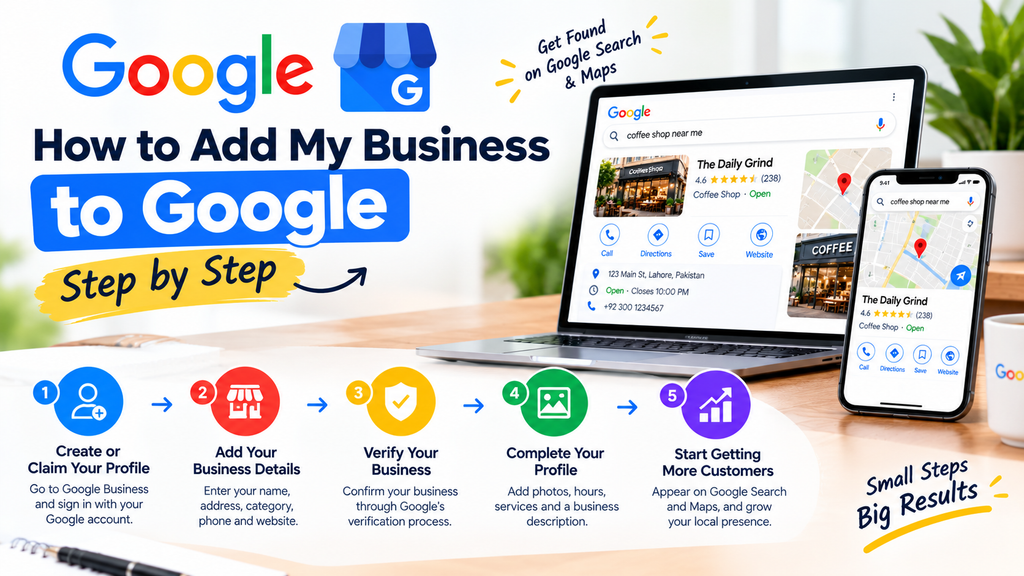
Now let’s get to the main question: how to add my business to Google?
The process starts with creating a Google Business Profile if one does not already exist.
Step 1: Search for Your Business First
Before creating a new listing, search Google and Google Maps for your business name and location.
This step is important because a Business Profile may already exist even if you did not create it yourself.
If you find an existing unverified profile for your business, you may be able to claim it instead of creating another listing.
Creating unnecessary duplicate profiles can cause problems, so always search first.
Step 2: Go to Google’s Business Profile Setup
If your business does not already have a profile, use Google’s official Business Profile setup process.
Google currently directs businesses to its Business Profile creation page where you can select the option to add your business and follow the on-screen instructions.
You will need to sign in with a Google Account.
Step 3: Enter Your Real Business Name
Enter the name of your business as it is actually represented in the real world.
Do not turn your business name into a keyword list.
For example, if your company is officially called:
Bright Dental Clinic
Don’t change the profile name to:
Bright Dental Clinic Best Dentist in Lahore 24/7 Cheap Dental Services
Keyword stuffing in the business name can make the listing less accurate and may violate Google’s guidelines.
Your goal should be consistency—not manipulation.
Step 4: Choose the Correct Business Category
Your primary category helps Google understand what your business does.
Choose the category that most accurately represents your core business.
This is one of the areas where you should avoid choosing a category simply because you think it might bring more searches.
The correct approach is to describe the business as it actually exists.
If additional categories genuinely describe your business, you can add relevant secondary categories where Google allows them.
Step 5: Select the Right Business Type
Google may ask how customers interact with your business.
Generally, your situation will fall into one of these types:
- Customers visit your physical location.
- You travel to customers.
- You serve customers both at your location and at their locations.
For example, a local restaurant with a customer-facing location is different from a plumber who travels to customers’ homes.
Choose the setup that accurately represents how your business operates.
Step 6: Add Your Business Address
If customers can visit your business, enter the actual physical address.
Make sure the address is complete and accurate.
Do not use a random address, virtual office, P.O. box, or another location where your business does not actually operate.
If you are a service-area business and customers do not visit your location, Google’s guidelines may allow you to hide the street address and show the areas you serve instead.
Step 7: Set Your Service Area If Applicable
Service-area businesses should specify the areas where they actually provide their services.
For example, a home-repair company might serve several nearby cities or neighborhoods.
Avoid adding huge geographic areas just to appear in more searches.
Your service area should reflect where you genuinely serve customers.
Step 8: Add Your Contact Information
Enter your business phone number and website.
Double-check every digit before submitting.
Your website should lead customers to the real business website rather than an unrelated page.
Your phone number should also be active and suitable for customer inquiries.
Step 9: Add Your Business Hours
Enter the hours during which customers can normally contact or visit your business.
Keep these hours updated.
Incorrect hours can create a poor customer experience, particularly when someone searches for your business while deciding whether to visit.
Remember to update your profile when your operating schedule changes for holidays, special events, or other circumstances.
Step 10: Verify Your Business
Verification is a critical part of the process.
Google determines which verification methods are available for a particular Business Profile. Depending on the business, region, account, and other factors, Google may offer different verification options.
Possible methods can include phone or text, video verification, or other methods made available by Google.
You cannot always choose whichever verification method you prefer because Google determines the available options.
Follow the verification instructions shown inside your Business Profile.
Step 11: Complete Your Profile
Once your business has been added and verified, don’t stop at the basic setup.
Complete as much relevant information as possible.
Depending on your business, this can include:
- Business description
- Website
- Services
- Products
- Photos
- Videos
- Hours
- Contact information
- Attributes
- Booking or other customer links where supported
Think of your profile as your local business storefront on Google.
A customer should be able to understand what you offer, where you operate, and how to contact you without having to search elsewhere.
How to Optimize Your Google Business Profile After Adding It
Getting your business onto Google is one step. Building a useful and trustworthy profile is the next.
Here are practical improvements you can make after verification.
1. Write a Useful Business Description
Your description should explain:
- What your business does
- Which products or services you provide
- Who you serve
- What makes your business different
- Relevant background or history
Keep it natural and useful.
Don’t fill the description with repeated keywords or promotional claims.
For example, instead of writing:
“Best dentist dentist dentist in Lahore best dentist near me cheap dentist Lahore…”
write a clear description that naturally explains your services and the type of customers you help.
2. Upload High-Quality Photos
Photos can give potential customers a better idea of what to expect before they contact you.
Consider adding:
- Exterior photos
- Interior photos
- Product photos
- Service photos
- Team photos
- Before-and-after images where appropriate
- Equipment or workspace photos
Use genuine images of your business rather than generic stock photos whenever possible.
3. Keep Your Business Information Consistent
Your business name, address, phone number, website, and other important information should be accurate across your website and other legitimate business profiles.
Consistency makes it easier for customers to identify the same business across different platforms.
If you move, change your phone number, change your opening hours, or update your website, review your Google Business Profile as well.
4. Choose Quality Over Quantity for Reviews
Reviews can play an important role in how potential customers perceive a local business.
The goal isn’t to collect meaningless reviews as quickly as possible.
Instead, provide a good customer experience and make it easy for genuine customers to leave honest feedback.
When customers leave reviews, respond professionally.
Thank customers for positive feedback and address legitimate concerns calmly.
Never create fake reviews or manipulate customers into posting misleading feedback.
5. Keep Your Profile Active and Accurate
Your profile should not be treated as a one-time setup.
Check it periodically for:
- Incorrect hours
- Wrong phone numbers
- Outdated photos
- Missing services
- Incorrect business information
- Customer questions
- New reviews
- Important business updates
An accurate profile is more useful than a profile that was created once and forgotten.
How to Add Your Business to Google Maps
Many people search for how to add my business to Google when what they really want is to appear on Google Maps.
The good news is that Google Business Profile is the main route.
You don’t need to create a completely separate business listing just for Maps.
When an eligible business creates or claims its Business Profile and completes verification, its business information can be managed across Google Search and Google Maps.
This is why your Google Business Profile should be treated as the central source for your local Google presence.
What If Your Business Already Appears on Google?
Don’t immediately create another profile.
Search for your business on Google Maps first.
If an existing profile appears and it represents your business, look for the option to claim or manage it.
If another person has already verified the profile, Google provides an ownership-request process for eligible businesses.
This is generally preferable to creating a second profile for the same location.
What If You Don’t Have a Physical Store?
You may still qualify if your business has in-person contact with customers.
For example, a service-area business such as a plumber, cleaner, repair professional, or mobile service provider may operate without a customer-facing storefront.
In such cases, the profile can be configured around the service area where appropriate.
However, having a virtual office or simply renting a mailing address does not automatically make a location eligible.
The profile needs to represent a real business that follows Google’s eligibility and representation guidelines.
Common Mistakes When Adding a Business to Google
Avoid these mistakes if you want a clean, sustainable Google Business Profile.
Mistake 1: Creating Multiple Profiles for One Location
If your business already has a profile, claim it rather than creating another one.
Mistake 2: Adding Keywords to the Business Name
Use your actual real-world business name.
Don’t add location names, services, phone numbers, or promotional phrases just for SEO.
Mistake 3: Using an Inaccurate Address
Your location should represent where the business actually operates.
Mistake 4: Choosing the Wrong Category
Don’t select a category simply because it sounds popular.
Choose the category that best describes your core business.
Mistake 5: Ignoring Verification
Adding information without completing the required verification process won’t give you full control of the profile.
Mistake 6: Leaving the Profile Half Complete
A basic name and phone number aren’t enough to communicate everything customers may need to know.
Mistake 7: Forgetting to Update the Profile
A business with permanently outdated hours or contact information can lose customer trust.
Mistake 8: Buying or Creating Fake Reviews
Artificial reviews can damage your reputation and may violate platform policies.
Focus on delivering a good customer experience and earning genuine feedback.
How Long Does It Take to Appear on Google?
There is no single guaranteed timeframe for every business.
Verification and profile visibility depend on the process Google assigns to your business.
Google also notes that new businesses can take time to appear in search results and that changes to business information may take time to show.
So don’t assume that a newly created profile will immediately rank for every local search.
First make sure the profile is correctly created and verified. Then continue improving the information and overall local presence.
How to Improve Your Chances of Being Found Locally
Adding your business to Google establishes your presence, but appearing prominently for relevant searches is a separate challenge.
Google says local results are influenced by factors such as relevance, distance, and prominence.
That means you should focus on building a legitimate and useful local presence rather than trying to manipulate individual ranking signals.
A strong local SEO foundation can include:
- A complete Google Business Profile
- Accurate business information
- A relevant primary category
- A useful business website
- Consistent business information across legitimate platforms
- Genuine customer reviews
- High-quality business photos
- Helpful local content
- Clearly described products and services
- A good customer experience
The objective is simple: make it easy for both Google and customers to understand exactly what your business is, where it operates, and what it offers.
A 15-Minute Google Business Profile Checklist
Before considering your setup complete, run through this checklist:
☐ I searched Google Maps for an existing business profile.
☐ I used my real business name.
☐ I selected the most accurate primary category.
☐ My address or service area is correct.
☐ My phone number is active.
☐ My website URL is correct.
☐ My business hours are accurate.
☐ I completed Google’s verification process.
☐ My business description clearly explains what I offer.
☐ I uploaded genuine business photos.
☐ I added relevant services or products.
☐ I know how customers can contact or visit me.
☐ I will monitor reviews and keep my information updated.
If you can check every box, your profile has a much stronger foundation than a listing that was simply created and abandoned.
Frequently Asked Questions
How to add my business to Google for free?
You can create or claim an eligible Google Business Profile at no charge. Start by searching for your business, then create a new profile if one doesn’t exist or claim the existing profile if it does.
Do I need a website to add my business to Google?
No. A website is not required simply to create a Google Business Profile. However, having a professional website can provide customers with additional information about your business.
How do I add my business to Google Maps?
Create or claim your eligible Google Business Profile, enter accurate business information, and complete Google’s verification process. Your Business Profile is used to manage how your business information appears on Google Search and Maps.
Can I add a home-based business to Google?
Some home-based businesses can qualify if they have in-person contact with customers. The correct setup depends on how the business operates and Google’s eligibility guidelines.
Can I add a service-area business without showing my address?
Eligible service-area businesses can configure their profile to show the areas they serve rather than displaying a customer-facing street address.
Why can’t I find my business on Google?
Your profile may not have been created, claimed, or verified yet. Other possibilities include incomplete information, visibility delays, policy issues, or simply that your business does not yet appear for the particular search you are using.
Can I create two Google Business Profiles for the same business?
You generally shouldn’t create duplicate profiles for the same business location. If a profile already exists, claim it or follow Google’s ownership process instead.
Does adding my business to Google guarantee first-page rankings?
No. Creating a Business Profile establishes your business presence, but local search rankings depend on Google’s systems and multiple factors. A properly completed profile is a foundation—not a guarantee of a particular ranking position.
Final Thoughts
If you have been searching for how to add my business to Google, the essential process is straightforward: check whether your business already has a profile, create or claim the correct Google Business Profile, enter accurate information, complete Google’s verification process, and keep the listing updated.
The biggest opportunity comes after the initial setup.
Instead of treating your Google listing as a digital business card, use it as an extension of your real-world business. Keep your information accurate, publish useful content where appropriate, add genuine photos, respond professionally to customers, and make sure your website and other legitimate business information support the same identity.
1 thought on “How to Add My Business to Google: A Simple Guide to Get Found Locally”